WordPress Table of Contents Plugins Compared
Long posts need a table of contents. Readers skim before they commit, and a clickable list of headings lets them jump straight to the part they came for. A clear outline can help readers navigate a long guide. Search-result presentation is decided by Google and is not guaranteed. WordPress does not include a table of contents out of the box, so you need a plugin. This article compares three of them honestly: my own lightweight plugin SnapTOC, and the two established free options, Easy Table of Contents and LuckyWP Table of Contents.
How to choose a WordPress table of contents plugin
- Auto-insert: the table appears on every post without manual shortcodes.
- Editor block: you can drop the table exactly where you want it in the block editor.
- Weight: how much CSS and JavaScript it adds to every page load.
- Anchor handling: the links behind each heading. If you write in Hindi or Gujarati, this matters more than you think (more below).
- Price: all three have a free option; SnapTOC is downloaded free from this site, while the alternatives are listed on WordPress.org.
A quick note on setup
Install Easy Table of Contents and LuckyWP through Plugins › Add New by searching their names. For SnapTOC, download the ZIP from this site and choose Upload Plugin. After activation, review the placement and heading settings for your chosen plugin, then test a long post on mobile.
Side-by-side comparison
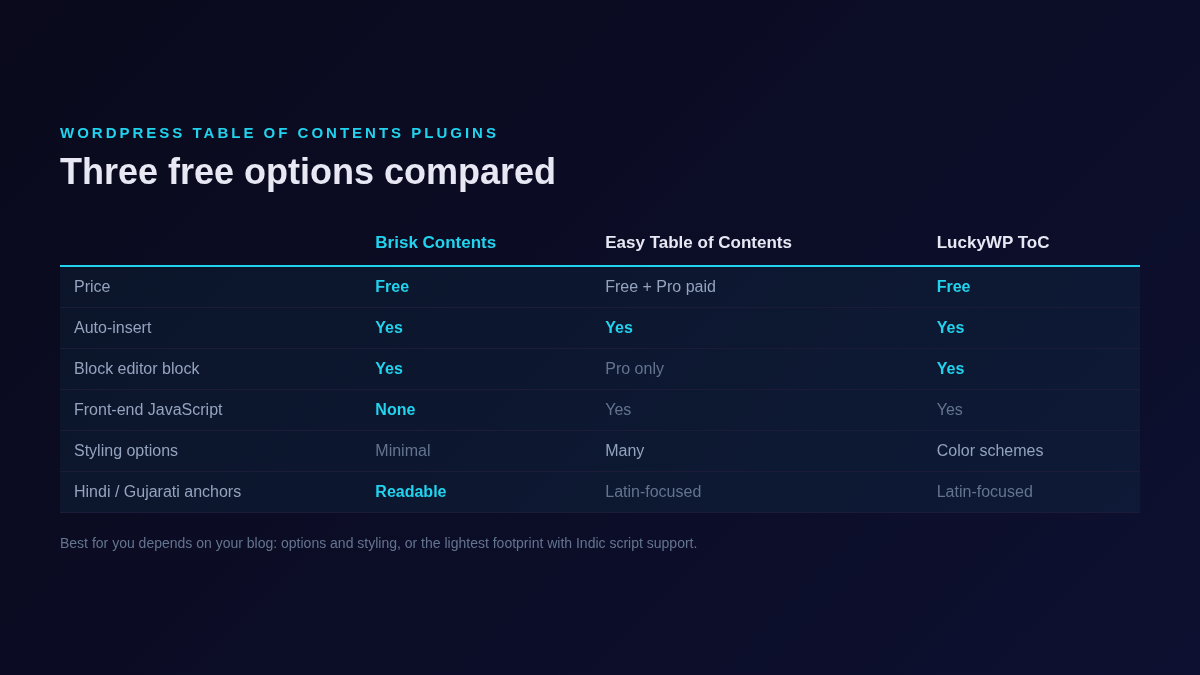
| SnapTOC | Easy Table of Contents | LuckyWP Table of Contents | |
|---|---|---|---|
| Price | Free (GPLv2+) | Free core; Pro version sold separately | Free |
| Auto-insert | Yes | Yes | Yes |
| Block editor | Yes, block included | Gutenberg block is a Pro feature | Yes, block included |
| Shortcode | Yes | Yes, [ez-toc] | Yes, [lwptoc] |
| Front-end JavaScript | None | Yes | Yes |
| Styling options | Custom colors and width; 1 KB stylesheet | Many options; more in Pro | Color schemes (dark, light, transparent, inherit) |
| Non-English headings | Readable anchors for Hindi and Gujarati | Test with your heading language | Test with your heading language |
| Extras | One-click import from Easy Table of Contents (preview + undo), per-post hide switch | Fragment caching, Elementor widget (Pro), many filters | Skip-headings rules, widget support, developer hooks |
Easy Table of Contents: the feature-rich default
Easy Table of Contents is one of the most installed ToC plugins and it shows. The settings screen covers everything: which post types get a table, which heading levels to include, where to position it, numbering styles, smooth scroll and more. It also has fragment caching to keep performance reasonable on busy sites.
Two things to know before choosing it. First, the Gutenberg block and the Elementor widget are part of the paid Pro version; the free plugin works through auto-insert and the [ez-toc] shortcode. Second, the large option set takes time to configure well. If you enjoy tuning settings, this is a strength. If you want the table working two minutes after install, it can feel heavy.
LuckyWP Table of Contents: the styling-focused choice
LuckyWP Table of Contents is also free and includes a Gutenberg block, a shortcode and a widget. Its strong point is appearance: built-in color schemes (dark, light, white, transparent or inherit from your theme), and rules to skip specific headings by text or level. Developers get a good set of hooks and filters, so it is easy to extend in a custom theme.
If matching your theme's look is the priority and you want to exclude headings selectively without code, LuckyWP is a solid pick.
SnapTOC: the lightweight one I built
I built SnapTOC because I wanted a table of contents that adds almost nothing to the page. It ships zero front-end JavaScript and a 1 KB stylesheet, which keeps its own front-end asset requirements small. Overall speed still depends on your theme, other plugins and hosting. It supports the block editor, a shortcode and auto-insert, and it covers the basics without a big settings screen.
The specific problem it solves for Indian bloggers is anchor links. For Hindi and Gujarati content, test the actual heading links on your site. Anchor behavior can vary with the plugin, theme, settings and other heading tools. SnapTOC keeps readable anchors for Hindi and Gujarati headings, so a Hindi blog gets working, meaningful jump links like an English one.
Where SnapTOC falls short
- Fewer styling controls than LuckyWP. Custom colors and width are included, but there are no preset color schemes or visual customizer. It is designed to inherit your theme and stay out of the way. If you want to restyle it heavily, you will write CSS or pick LuckyWP.
- No Pro tier extras. No Elementor widget, no fragment caching, no priority support. Easy Table of Contents Pro covers those needs.
- Newer and smaller. It has a shorter track record than the other two, which have years of user feedback behind them.
Which table of contents plugin fits your WordPress site?
Pick Easy Table of Contents if you want maximum control and do not mind a settings-heavy plugin, or if you plan to buy Pro for the Elementor widget and extras.
Pick LuckyWP Table of Contents if appearance matters most: color schemes, skip rules and a widget, all free.
Pick SnapTOC if you prefer a small feature set with no front-end JavaScript, if you write in Hindi or Gujarati and need anchors that keep working in your language, or if you are moving away from Easy Table of Contents and want your settings carried over.
All three have a free option. Test a change on staging first: anchor IDs, placement and styles can differ, and existing links to headings may need attention. One practical tip before you commit: open your longest post on a phone, tap a few jump links, and scroll back up. The right plugin is the one where that flow feels instant and the table does not push your actual content too far down the screen. A table of contents should help readers, not become the content.
If you write in more than one language, also check the jump links on your non-English posts specifically. That is the step most comparisons skip, and it is exactly where the differences show up.
Try SnapTOC
Free download from this site. Feedback from Hindi and Gujarati bloggers is especially welcome.
Download SnapTOC Ask on WhatsAppSource check: 23 October 2026. Features and fees can change. Plugins page · Easy Table of Contents · LuckyWP